If you are tired of paying monthly subscriptions for ChatGPT or worrying about your data privacy, learning how to run LLMs locally is the single best skill you can master this year.
Running a Large Language Model (LLM) on your own computer used to require a Ph.D. in computer science. Today, thanks to tools like LM Studio and Ollama, it is as easy as installing an app.
In this guide, we will teach you exactly how to run LLMs locally on Mac, Windows, or Linux. We will cover hardware requirements, the best software to use, and which open-source models (like Llama 3 and Mistral) yield the best results.
Table of Contents
Why You Should Learn How to Run LLMs Locally
Before we dive into the technical steps, why are so many developers and enthusiasts switching to local AI? When you figure out how to run LLMs locally, you unlock three massive benefits:
- Total Privacy: Your data never leaves your computer. You can upload sensitive legal documents or personal journals without sending them to OpenAI or Google.
- No Monthly Fees: Once you buy your hardware, the models are free. You stop paying $20/month for ChatGPT Plus.
- Offline Access: You can use AI on an airplane or in a cabin without Wi-Fi.
Understanding how to run LLMs locally gives you total control over the AI experience.
Hardware Requirements: Can Your PC Handle It?
The first step in learning how to run LLMs locally is checking your hardware. You do not need a supercomputer, but you do need specific specs, primarily RAM and GPU (Graphics Processing Unit).
1. Apple Mac (M1/M2/M3 Chips)
Macs are currently the best consumer machines for local AI because of their “Unified Memory.”
- Minimum: M1 Air with 8GB RAM (Will run small 7B models comfortably).
- Recommended: M2/M3 Pro with 16GB or 32GB RAM (Can run powerful Llama 3 70B models).
2. Windows PC (NVIDIA GPUs)
If you are on Windows, knowing how to run LLMs locally efficiently usually requires an NVIDIA card.
- Minimum: NVIDIA RTX 3060 (12GB VRAM).
- Recommended: NVIDIA RTX 4090 (24GB VRAM).
- Note: You can run models on your CPU (processor) only, but it will be much slower.
Top 3 Tools to Run LLMs Locally
There are dozens of ways to execute these models. We have tested the top options to simplify how to run LLMs locally for beginners.
1. LM Studio (Best for Beginners)
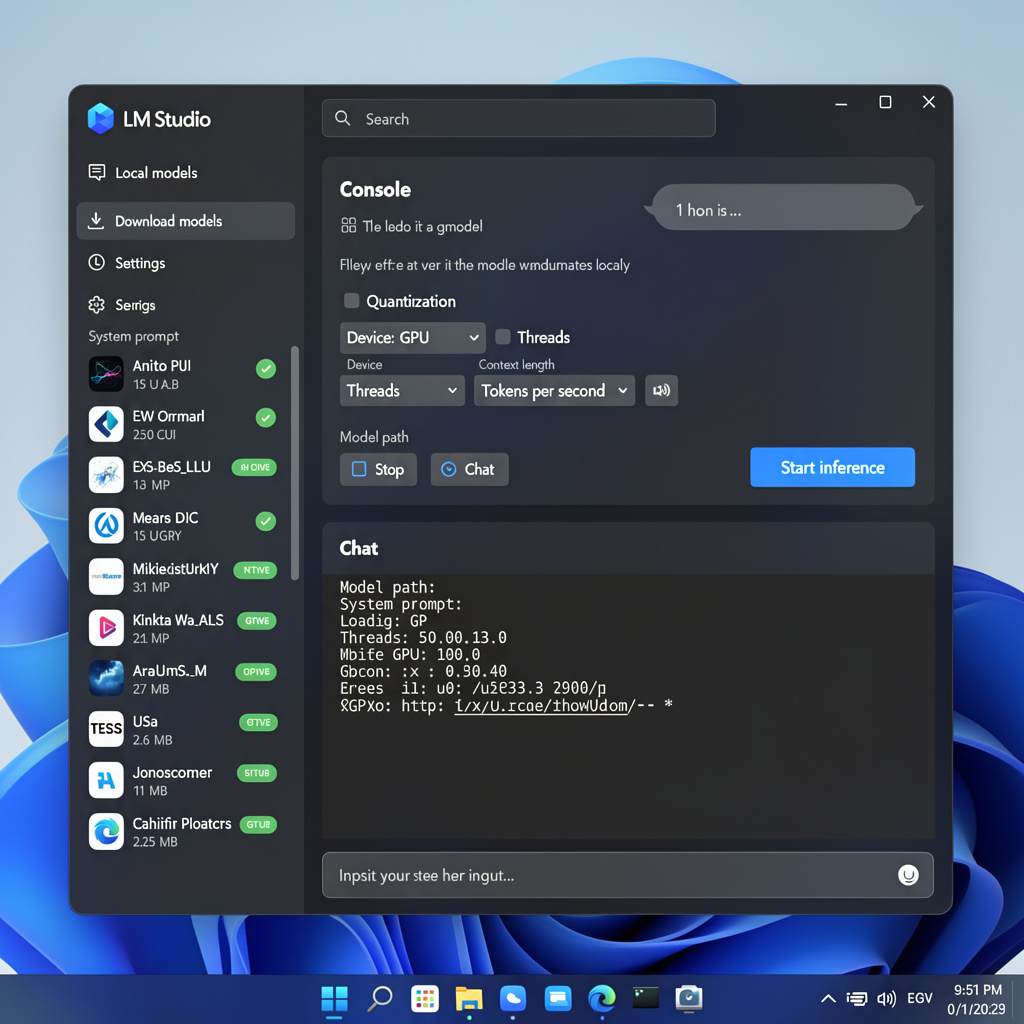
If you want a graphical interface that looks just like ChatGPT, LM Studio is the winner. It allows you to search for, download, and chat with models with zero coding.
2. Ollama (Best for Mac/Linux)
Ollama is a command-line tool that has taken the developer world by storm. It makes the process of how to run LLMs locally feel like magic.
3. GPT4All (Best for CPU)
If you don’t have a powerful graphics card, GPT4All is optimized to run on standard CPUs.
Step-by-Step Guide: How to Run LLMs Locally with LM Studio
For this tutorial, we will use LM Studio because it is the most visual way to learn how to run LLMs locally.
Step 1: Download and Install
Go to the official LM Studio website and download the version for your OS (Windows, Mac, or Linux).
Step 2: Search for a Model
Open the application. On the left sidebar, click the magnifying glass. In the search bar, type “Llama 3” or “Mistral.”
- Tip: Look for models uploaded by “TheBloke” or “MaziyarPanahi”—these are highly trusted quantizations (compressed versions).
Step 3: Select the “Quantization”
This is the most confusing part of learning how to run LLMs locally. You will see options like Q4_K_M, Q5_K_M, or Q8_0.
- Q4 (4-bit): Lower quality, uses less RAM, runs faster. (Recommended for 8GB-16GB RAM).
- Q8 (8-bit): Highest quality, uses massive RAM, runs slower.
Step 4: Chat
Click the “Chat” icon on the left. Select the model you just downloaded from the top dropdown menu. You are now chatting with an AI hosted entirely on your machine!
Choosing the Right Model for Local Use
Knowing how to run LLMs locally is useless if you don’t know which model to pick. Unlike ChatGPT, you have thousands of options.
Llama 3 (Meta)
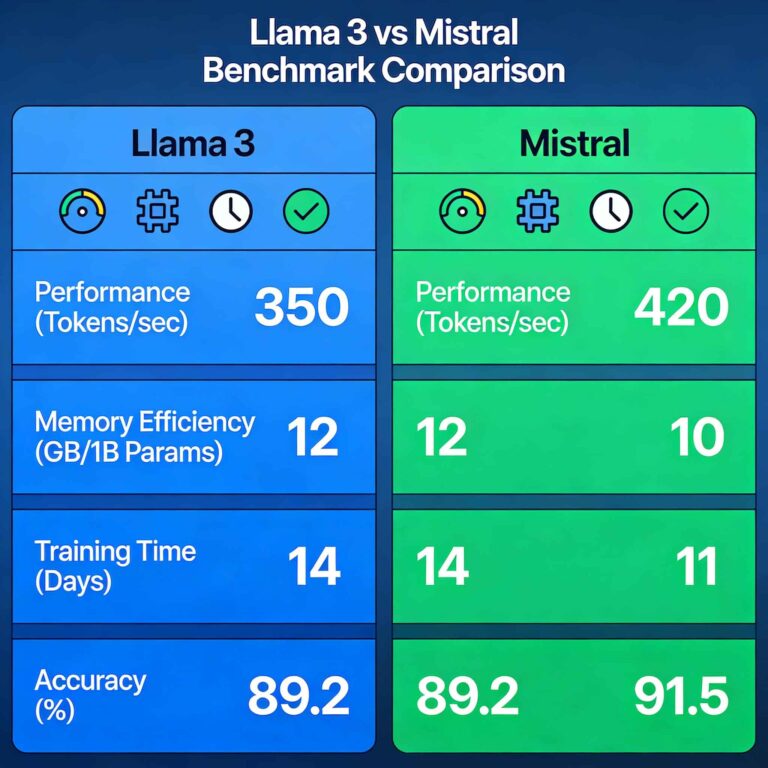
The current king of open-source. It is fast, smart, and excellent at general reasoning. If you are just starting to figure out how to run LLMs locally, start here.
Mistral / Mixtral
Mistral creates highly efficient models. Their “Mistral 7B” is famous for punching above its weight class, often beating older versions of GPT-3.5.
Dolphin (Uncensored)
One major reason people search for how to run LLMs locally is to avoid censorship. “Dolphin” versions of models have the safety filters removed, allowing them to answer controversial questions or write edgy fiction.
Troubleshooting Common Issues
When you learn how to run LLMs locally, you will encounter bugs. Here are the fixes.
“The Model is Too Slow”
If the AI types at 1 word per second, your hardware is struggling.
- Fix: Download a smaller model (e.g., switch from Llama-3-70B to Llama-3-8B).
- Fix: Use a lower quantization (switch from Q8 to Q4).
“Out of Memory (OOM) Error”
This means the model is larger than your RAM/VRAM.
- Fix: Close other applications (Chrome tabs, Photoshop) to free up memory.
- Fix: Use a specialized tool like Ollama which manages memory more efficiently on Macs.
Is It Worth Learning How to Run LLMs Locally?
The initial setup takes about 15 minutes, but the payoff is immense. By mastering how to run LLMs locally, you future-proof your workflow. You are no longer dependent on OpenAI’s server status or their changing privacy policies.
Whether you are a developer building apps or a writer looking for a private assistant, the ability to host your own intelligence is a superpower in 2026.
Start with LM Studio, download a 7B parameter model, and experience the speed of local AI today.